High Point University business cards are ordered through the Blackboard portal. HPU has partnered with a local printer to produce all HPU business cards. This ensures the color, paper and stock are consistent.
The front of all business cards will display the following:
- Name
- Office
- Phone
- Email address
- Title
- Address
- Optional mobile
The back of all business cards will display the following branding statement and web address:
- At High Point University, every student receives an extraordinary education in an inspiring environment with caring people.®
- highpoint.edu
Students employed by the university or student organizations may order business cards upon request of the Office of Communications.
To Place An Order:
Business card orders are placed online.
Visit Blackboard > Organizations > Business Card Ordering > Sir Speedy > HPU Business Cards
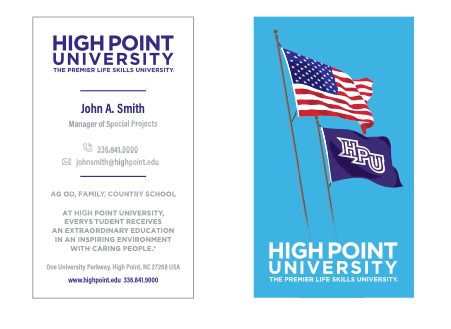
Our standard HPU business card has a vertical layout. The horizontal business card is reserved for staff and professionals when their credentials cannot fit on one line with the vertical layout. If you require a horizontal card please email communications@highpoint.edu for approval.
Envelopes & letterheads
Customized letterhead and envelopes with the college, school or department may be ordered through a template on Unimarket.
TO PLACE A CUSTOM ORDER:
- Sign into Unimarket
- Select Marketplace
- View Suppliers
- Type “CE Print Solutions” in the search bar and select
- Select “CE Print Punchout” to visit CE Print website to place the order
Please note that although CE Print Solutions has business cards and folders available on their website, ONLY ENVELOPES AND LETTERHEADS are approved to be ordered through them.
Email Signatures
As the broadest form of daily correspondence, a consistent email signature must be used across the university. The only permissible elements in your email signature are your name, title, and academic credentials. No personalized quotes, slogans, or backgrounds may be included. Further, additional logos or websites may not be added unless approved by the Office of Communications.
Any additional logos or verbiage that may be approved should highlight designations or recognitions that showcase the university’s commitment to providing an extraordinary education in an inspiring environment with caring individuals.
Instructions on adding an email signature:
Detailed instructions for updating your email signature for the 2024 Centennial Year below:
Copy the new signature template provided below:

- Open Outlook
- Draft a New Email
- Open the Signature Tab and Select “Edit Signatures”
- Copy and paste the GIF found below in place of the Robert’s Hall GIF– new GIF will not show at this step.
- Ensure that all personal information is accurate and up to date.
- Save the changes and close out the email!
- When you begin a new email, your new signature will show.
- You’re now proudly representing High Point University’s centennial celebration in every email you send.
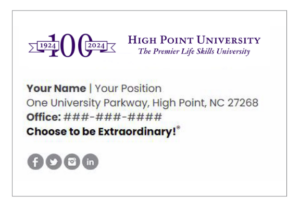
Once complete, this is how the final signature should appear:
If you encounter any difficulties or have questions about the process, please feel free to reach out to Elaina Huffman, Senior Director of Branding and Special Projects.
336-841-9351 | ehuffma1@highpoint.edu.
Instructions for Email Signatures (after 2024):
- Copy the following template including the logo and social media icons
- In Outlook, click for “new email”
- Click “Signature”, then select “Signatures” then paste in the body, edit the details as appropriate and click “ok”
(For Mac click “Outlook” -> “Preferences” -> “Signatures”)

Your Name | Your Position
One University Parkway, High Point, NC 27268
Office: ###-###-####
Choose to be Extraordinary!®


To place an order for a customized name plate or name tag/badge, you must enter a requisition into Unimarket.
- Email orders@capitolmedals.com to request a quote for a customized name badge or name plate. Please provide first and last name and your title.
- Once the quote is received, sign in to Unimarket.
- Select Marketplace.
- View Suppliers.
- Type “Capitol Medals” in the Supplier field and Search.
- Select “Capitol Medals”.
- Create a Non-Catalog Item.
- Enter Item Name, Unit Price, and Description with information from the quote. Add to Cart.
- Once you are on the Checkout screen, Do Not Retrofit the requisition!
- Enter the GL Account Number.
- In the Delivery Notes, enter the delivery location and attach the quote in Order Attachments.
- Provide Justification notes, if any. These are not seen on the PO. This is for internal information only.
- Checkout.
- Upon approval, the PO will be emailed directly to Capitol Medals.
- When your order arrives, take the invoice and send to Accounts Payable with the PO number.
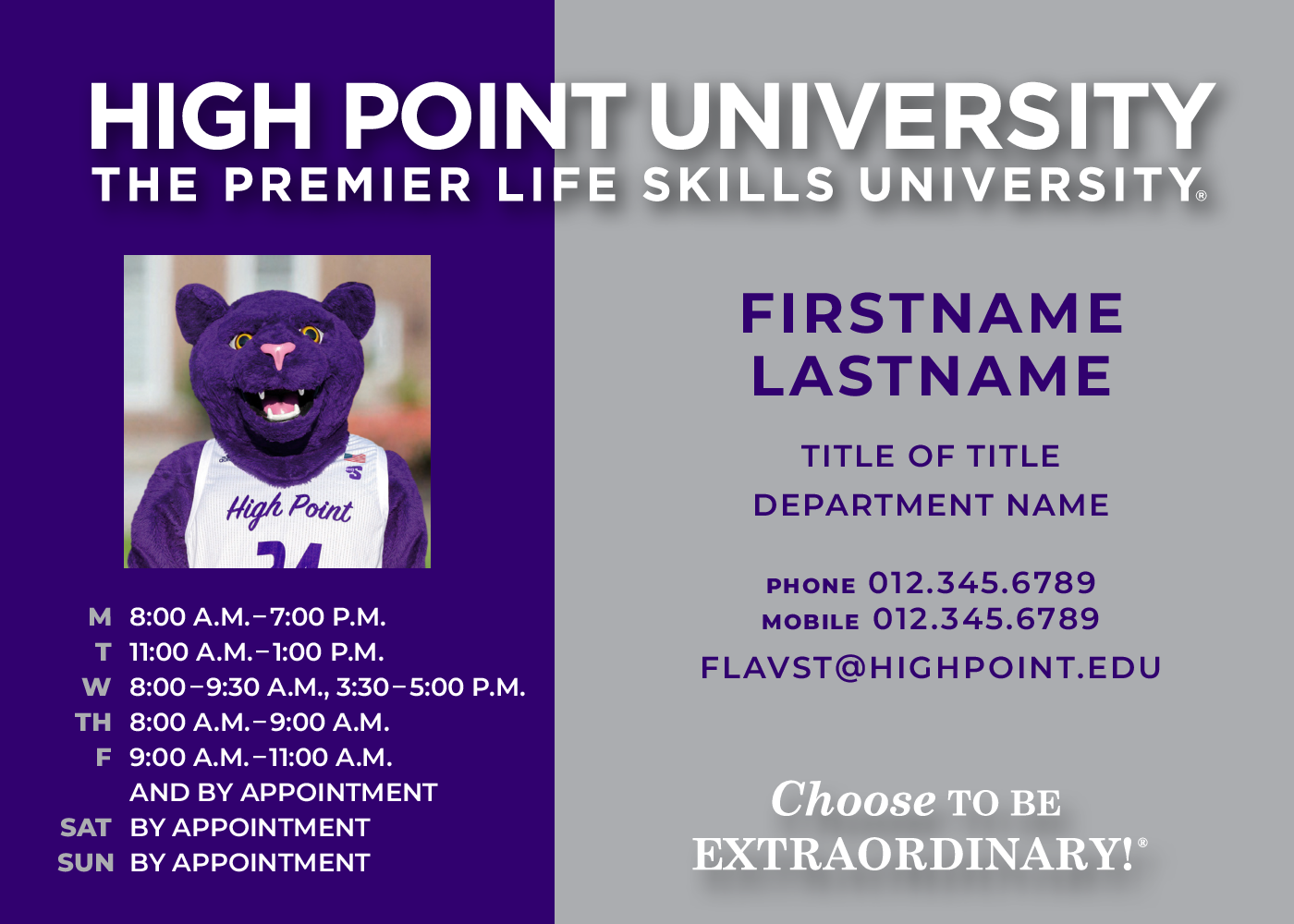
To generate a custom office placard:
- If you need a headshot taken for your placard, you can request a headshot photo with the University Photographer.
- Order a placard through Printing Services. This insert will print in the Smith Library.
- Your placard can be picked up on the first floor of the Smith Library. Please allow 48 hours for your placard/placards to be completed, after 48 hours they will be located in front of the print shop in a blue bin where your placard will be placed alphabetically ordered by last name. If you do not have your placard after 48 hours, reach out to printshop@highpoint.edu regarding the issue.
- A work order with HPU Campus Enhancement can be placed for the placard hardware to be installed.
Internal and external presentation templates must always be used to communicate a consistent message to audiences. Additionally, following the tips below will enhance the visual impact and advance the High Point University brand.
Presentation Tips:
- We recommend Century Gothic as the font selection.
- Choose a font size that your audience can read from a distance:
-
- A one-inch letter is readable from 10 feet
- A two-inch letter is readable from 20 feet
- A three-inch letter is readable from 30 feet
-
- Avoid using centered text unless making a simple statement. Text aligned left or right is easier to read and follow.
- Avoid clutter or too much information. Presentations should serve as a guideline to share information, not something that is read word-for-word.
Download PowerPoint Template
Canva Templates
Canva is a web-based design tool for those with little to no graphic design experience. It allows faculty, staff and students to create their own flyers, social media graphics, posters and more. The Canva for Teams platform at High Point University provides access to easy-to-use branded templates (see below) across all channels that are pre-approved and customizable. When a user joins the High Point University Canva team, they will be provided with all of the approved logos, patterns, colors, fonts, and templates to create materials.
Many faculty and staff have their own personal, free Canva accounts. We ask that they do not use them for materials regarding the university because they need to be branded properly to ensure brand consistency.
We have limited number of licenses, so Canva accounts should be set up with a universal/group or department email (example: communication@highpoint.edu) and a password that will be managed by your Admin and distributed to all staff and faculty in that department. To request access to the university Canva account please email communication@highpoint.edu.
External Audience Info (16:9)
When presenting to an external audience, it is important to share relevant information about High Point University. Presentations must include one of the following selections or a combination and include the title and closing slide:
- Information about High Point University
- Purposeful Growth
- High Praise for High Point University
- Our City. Our University.
Canva Templates
To use –
- Sign into High Point University’s Canva account using your Canva credentials at https://www.canva.com/.
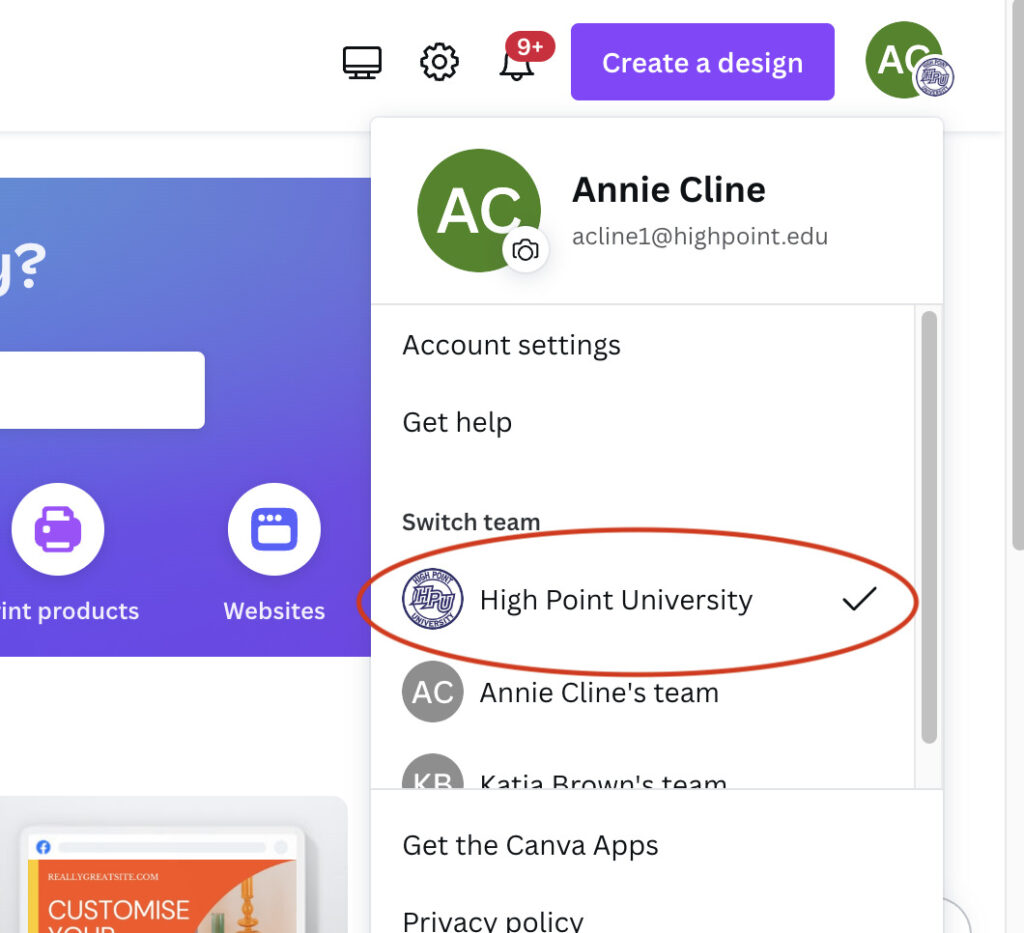
- Make sure you are in the High Point University Team by clicking on the profile icon on the top right corner, and choosing “High Point University”.
- On the left-hand side, click on ‘Brand Hub’ and then ‘Brand Templates’.
- Hover over the template you’d like to use and select “make a copy.”
- Start editing.
- To download or share, click “Share” in the top right corner from your design page and choose the format that best fits your needs.

*August 2024
We have updated our standards for email signatures and phone/voicemail greetings. Please follow the following guidelines:
Email:
Approved Fonts: Calibri, Century Gothic, Verdana, Arial, Times New Roman
Colors: For ADA compliancy, please use black text. Yellow highlighting can be used minimally for internal emails to direct the reader’s attention. The contrast level must be 7:1 for normal text and 4.5:1 for larger text. Colored text is not recommended.
Out-of-Office Email:
Thank you for contacting (department) at High Point University. I am currently out of the office until (insert date). For immediate assistance, please contact (insert colleague info or department office) between 8am and 5pm Monday-Friday.
Office: Building, Floor, Room Number (Department or Colleague Office Location)
Phone: 336-841-**** (Department or Colleague Phone Number)
Email: (Department or Colleague Email)
Request Form: (Intake Form if applicable)
(Student Services Departments ex: Student Life, OARS etc. must also include):
If this is an emergency, please contact Campus Police at 336-841-9111.
Greeting Example:
Good morning/afternoon (insert title) Last Name,
Ex: Good morning Dr. Smith,
Official HPU Phone Greetings:
Thank you for calling High Point University. This is (insert first name). How may I assist you?
Thank you for calling the (insert department name) office at High Point University, this is (insert first name). How may I assist you?
Official HPU Voicemail Greetings:
Individual Mobile:
Thank you for calling High Point University. You have reached (insert first and last name), (HPU position title). Please leave your name and phone number and I will get back to you as soon as possible. Have an extraordinary day!
Individual Desk Phone:
Thank you for calling High Point University. You have reached (insert first and last name), (HPU position title). I am currently assisting other callers or away from my desk. Please leave your name and phone number and I will get back to you as soon as possible. For assistance, please call the (department name) Office at 336-841-**** Have an extraordinary day!
*If you have a department phone number.
Department Voicemail:
Thank you for calling the High Point University (insert department name) Office. Our business hours are 8am-5pm Monday through Friday. We are currently assisting other callers. Please leave your name and a detailed message, and we will return your call as soon as possible.
Department Voicemail with Extended Hours:
Thank you for calling the High Point University (insert department name) Office. Our business hours are (insert business hours). We are currently assisting other callers. Please leave your name and a detailed message, and we will return your call as soon as possible.
(Student Services Departments ex: Student Life, OARS etc. must also include):
If this is an emergency, please contact Campus Police at 336-841-9111.
Out-of-Office Voicemail:
Thank you for calling High Point University. You have reached (insert first and last name), (HPU position title). I am out of the office and will be returning (date) For assistance, please call the (department name) Office at 336-841-**** Have an extraordinary day!
*Please use Out-of-Office greetings whenever you are not able to regularly check emails and voicemails.
HPU Voicemail Setup:
You will need to sign into Microsoft Teams to manage your voice mailbox.
To set up a voicemail greeting in Teams,
- Log into Teams (either from a web browser or the desktop app).
- Click on the three dots next to your profile icon in the upper-right corner of the Teams console.
- Choose Settings from the drop down menu.
- Choose the Calls tab on the left of the flyout window.
- Under the Voicemail heading, click Configure voicemail.
- Click Record a greeting.
- This button will launch a call to the voicemail system where you will use the dial pad to navigate the automated menu and record your voicemail message.
- Press 1 to listen to your voicemails or 2 to set up a new voicemail greeting.
- To repeat the menu, press 0.
- To exit the voicemail dialogue press the * key.
Once your voice mailbox is set up, you can listen to your voicemails in Outlook or Microsoft Teams. In Teams….
- Click the Calls button on the toolbox to the left.
- Click the Voicemail button in the History window.
- Click the voicemail you want to listen to.
- Use the playback controls at the bottom to play the message.
- Call someone back by using the call controls under the contact details at the top.
If you are in need of headshots or images to use on the website or a project, you can sign up for Canto here: https://highpoint.canto.com/
- Create a new user, and use your HPU account credentials.
Use the search at the top right or the albums on the left to explore.
You can also look for images in our Public Canto Portal.